Hermes Agent Desktop Version
Hermes Desktop is the official desktop application, providing a graphical interface on top of the command-line tool—including a visual Dashboard, Profile manager, Skill browser, etc. When installing the desktop application, the command-line tool is also installed (hermescommand), and the two can be used together.
Download and installation
- Visit Official Websitehermes-agent.nousresearch.com
- ClickDownload For ...Button
- Run the downloaded installer and follow the prompts to complete the installation.

After downloading, just double-click to install:

After installation is complete,hermesThe command will be automatically added to the system PATH, so it can be used directly in the terminal.
The entire panel is as shown below:

Left Sidebar
Divided into three parts:
- Top action area (new session ⌘N, skill tools, messaging platforms, Artifacts entrance).
- Center search bar.
- Bottom session list, divided into two groups: PINNED (pinned) and SESSIONS (normal, showing total count).
title bar
- Centrally displays the current session name; click ∨ to rename or manage it.
- The icons on the right are, in order: Voice mode, Keyboard shortcuts, Settings (opens the Settings panel).
conversation area
- Main chat area; user messages are displayed on the right, Agent replies on the left.
- Before a reply, a Thinking status line is visible, indicating the model is reasoning (the currently used kimi-k2.5 supports chain-of-thought).
input box
- Left side + attachable files/images.
- Center placeholder text.
- On the right, the following are displayed in order: current model name + reasoning intensity (Med), microphone (voice input), and send button.
- Input/Trigger slash command completion.
Bottom status bar
- Gateway ready: gateway online status.
- Agents sub-agent management.
- Cron scheduled tasks.
- On the right are the number of Tokens used in this session, session duration, and version number v0.17.0.

Top-right corner configuration
Top-right corner contains configuration, shortcuts, panel switching, and other functions:

Configuration info: you can configure language, models, etc.:

After configuring the language to Chinese, the interface will be displayed in Chinese:

Model Configuration
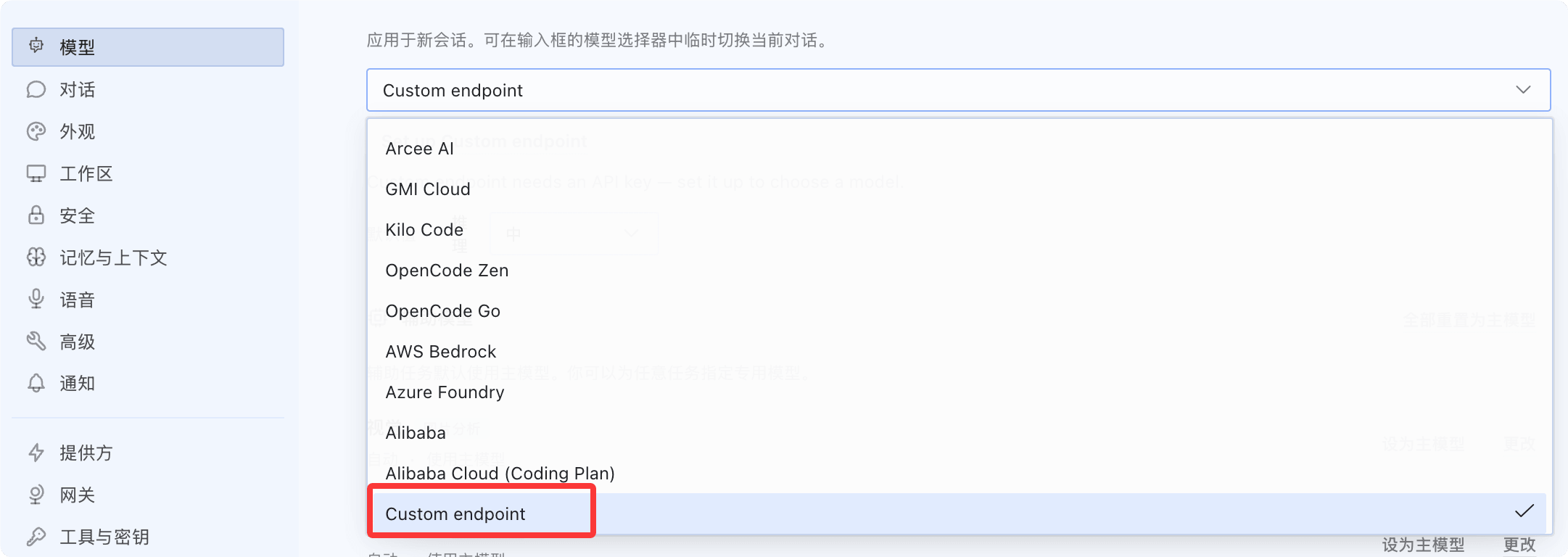
We can configure the model ourselves and can use the Coding Plan, which is the most cost-effective, after all, it's a monthly subscription:
Model selection, choose from dropdown.Custom endpoint:
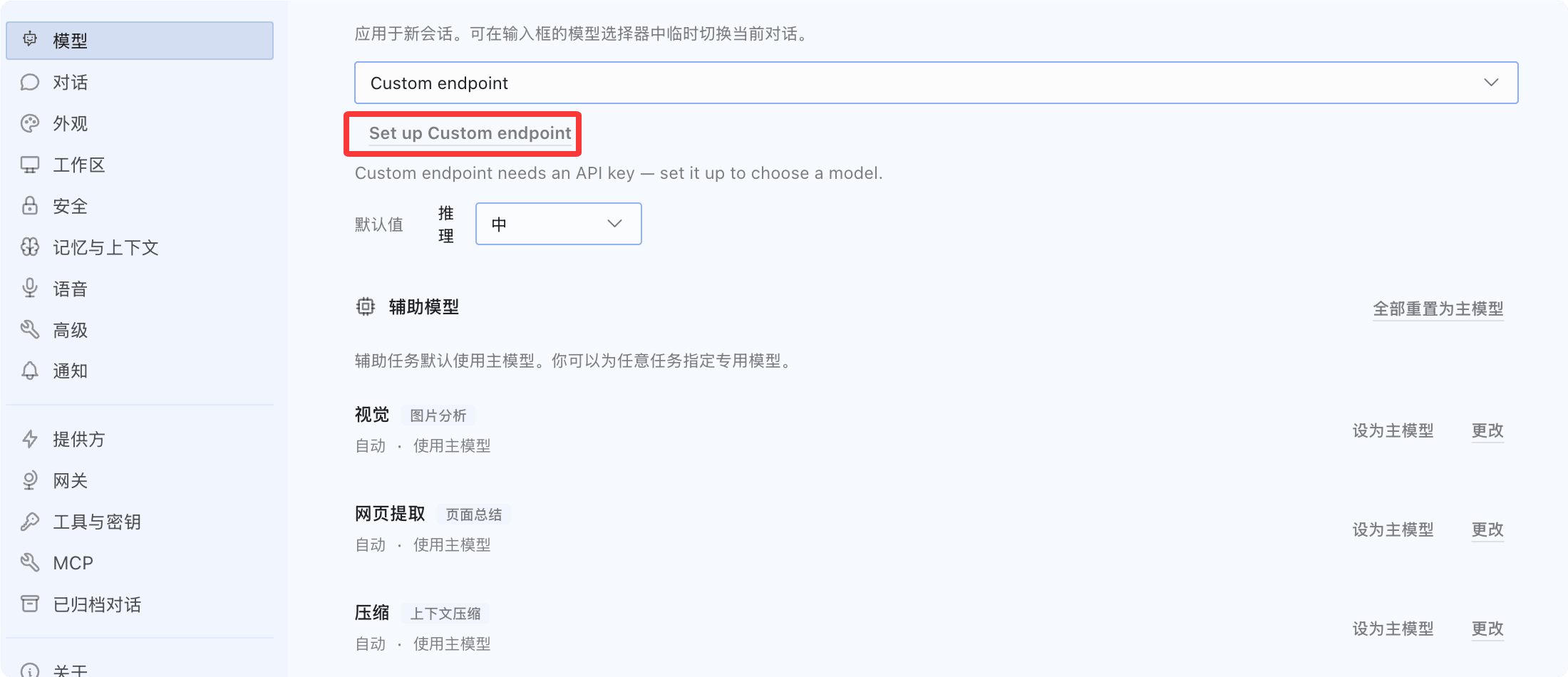
Then ClickSet up Custom endpoint:
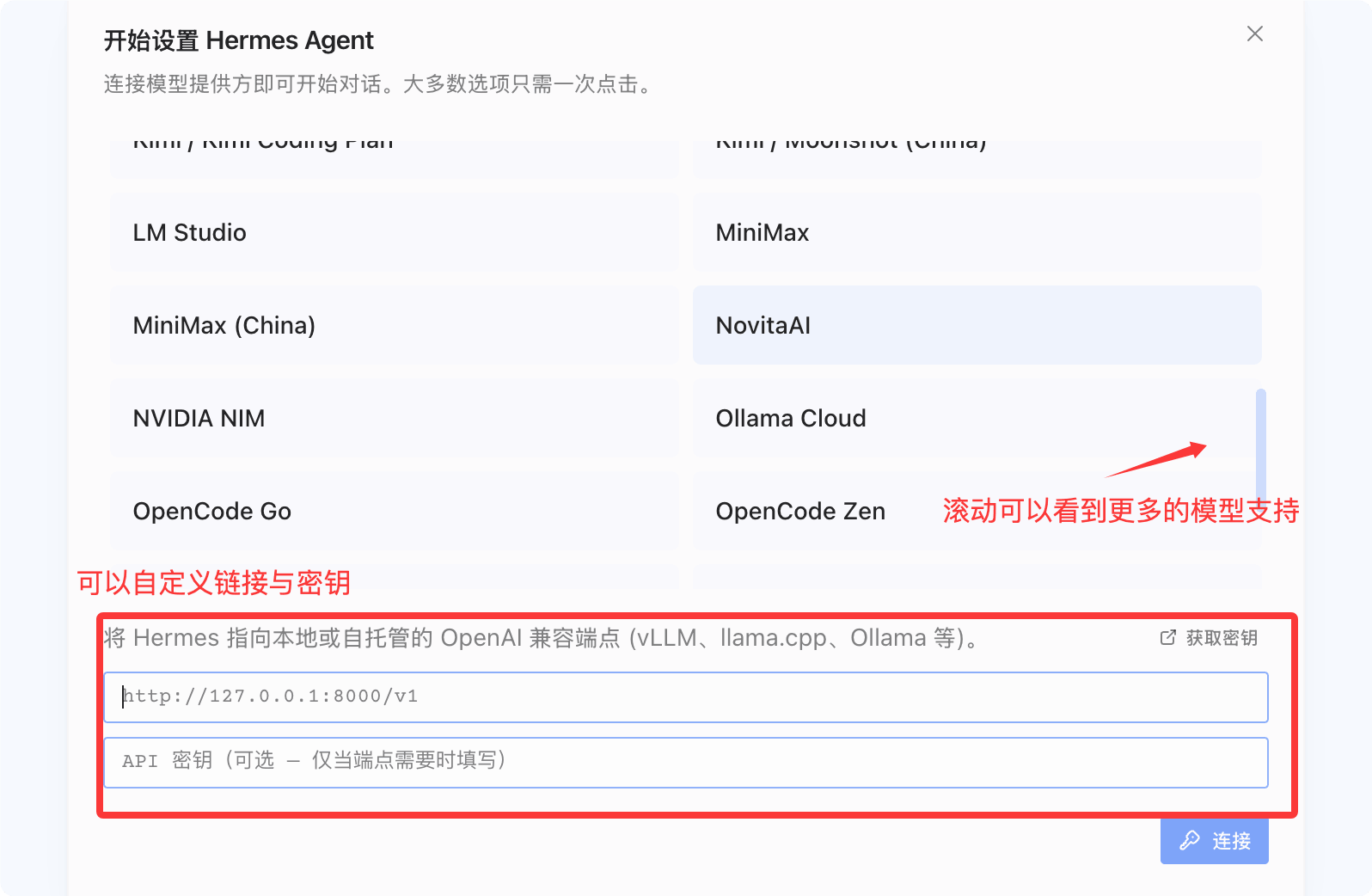
You can see more supported models. Click the ones you have; for those you don't, you can enter the request URL and API key in the dropdown input field:
Configuration Instructions
Configuration panel menu function descriptions:
- Model: Select the AI large model called by the conversation, and configure model parameters.
- Conversation: Manage session history, context window, and conversation retention rules.
- Appearance (current page)
- Language: Switch the desktop client interface language; supports Simplified Chinese and other languages.
- Light/dark mode: three display modes—Light / Dark / Follow System.
- Theme colors: Built-in interface themes such as Nous, Midnight, and more; can also search the VS Code marketplace for additional themes.
- Workspace: Divide project spaces to isolate sessions and configurations across different scenarios.
- security: Configure access permissions, local data encryption, and privacy controls.
- Memory and context: Configure long-term memory, context truncation, and historical message carrying policies.
- Speech: Enable voice input / voice reading, choose microphone and TTS voice engine.
- Advanced: Debug logs, network proxy, local cache, and experimental feature toggles.
- Notification: Control message pop-ups, background reminders, and message push notifications.
- Provider: Configure API keys for major model service providers (OpenAI, Anthropic, etc.).
- Gateway: Connect to a model relay gateway to centrally manage interface addresses.
- Tools and keys: Configure extended tools such as web search and code execution, and manage third-party keys.
- MCP: Integrate with MCP protocol services to extend Agent capabilities.
- Archived conversations: View archived historical session records.
- About: View client version, license information, and update entry.