Hermes Agent deployment modes and Dashboard
Hermes supports deployment across all scenarios, from laptops to GPU clusters.
This chapter introduces the configuration methods, applicable scenarios, and comparisons of the six deployment modes one by one, as well as the visual management features of the Web Dashboard.
Detailed Explanation of Six Deployment Modes
Mode 1: Local CLI
The simplest deployment method: the Agent runs on the same machine as you, with zero configuration.
Direct dialogue:
hermes chat
TUI interface:
hermes --tui
Desktop application:
hermes desktop
Features: Simplest, zero configuration, suitable for development and personal daily use.
Mode 2: Gateway Service
Run the Agent as a 24/7 online Bot, always ready to respond to messages from messaging platforms, with scheduled task support.
Run in the foreground for debugging, logs output directly to the console:
hermes gateway
Register as a system service and start in the background for persistent production deployment:
hermes gateway install && hermes gateway start
Check gateway running status:
hermes gateway status
Other commands:
# 停止服务
hermes gateway stop
# 重启服务
hermes gateway restart
# 卸载系统服务
hermes gateway uninstall
Features: Agent stays online continuously, suitable for scenarios such as personal bots and team assistants.
Mode 3: Docker Container
The official image supports multi-Profile gateway, with processes managed by s6-overlay.
Pull official image:
docker pull nousresearch/hermes-agent:latest
Run (mount configuration directory):
docker run -d \
  --name hermes \
  -v ~/.hermes:/root/.hermes \
  -e OPENROUTER_API_KEY=sk-or-... \
  -e TELEGRAM_BOT_TOKEN=... \
  nousresearch/hermes-agent:latest
The multi-Profile gateway inside Docker is automatically supervised by s6-overlay.
hermes profile createIt automatically registers the s6 service slot, and after Docker restarts, it automatically restores all gateways that were running before.
Let the Agent's terminal commands also execute inside the container:
Example
# Docker backend: Agent commands execute inside the container
terminal:
backend: docker
docker_image: "nikolaik/python-nodejs:python3.11-nodejs20"
container_persistent: true
Features: Dual container isolation for processes and commands, suitable for CI/CD and production environments.
Mode 4: SSH Remote Server
The Agent runs locally, but all terminal commands are executed on the remote server.
Example
hermes config set terminal.backend ssh
hermes config set terminal.ssh_host user@your-gpu-server.com
# Agent runs on local machine, commands execute on remote GPU server
hermes chat
Typical scenario: Send messages locally, and let the Agent train models and process large datasets on a remote GPU server.
Mode 5: Modal Serverless
The Agent executes commands in the Modal cloud sandbox (VM), incurring almost no cost when idle.
Example
hermes config set terminal.backend modal
Features: Pay-as-you-go billing, suitable for occasional high-intensity computing tasks.
Mode 6: Daytona Managed Workspace
Both the Hermes process and the terminal sandbox are in the cloud, completely independent of the local machine.
Example
terminal:
backend: daytona
Features: Fully cloud-based, managed cloud development environment.
Comparison of six modes
| Mode | Where is Hermes | Where to execute the command | Suitable scenarios |
|---|---|---|---|
| Local CLI | Local | Local | Development, personal daily use |
| Gateway service | Local/Server | Local/Server | 24/7 Bot |
| Docker | Container | inside the container | Isolation, CI/CD |
| SSH Remote | Local | Remote server | GPU computing, big data |
| Modal | Local | Modal Cloud VM | Serverless, temporary computing |
| Daytona | Cloud | cloud container | Fully cloud |
Web Dashboard
Dashboard is Hermes' visual management interface, which can manage the configuration, models, skills, MCP, and sessions of any Profile.
Start Dashboard
Start Dashboard using the following command:
hermes dashboard
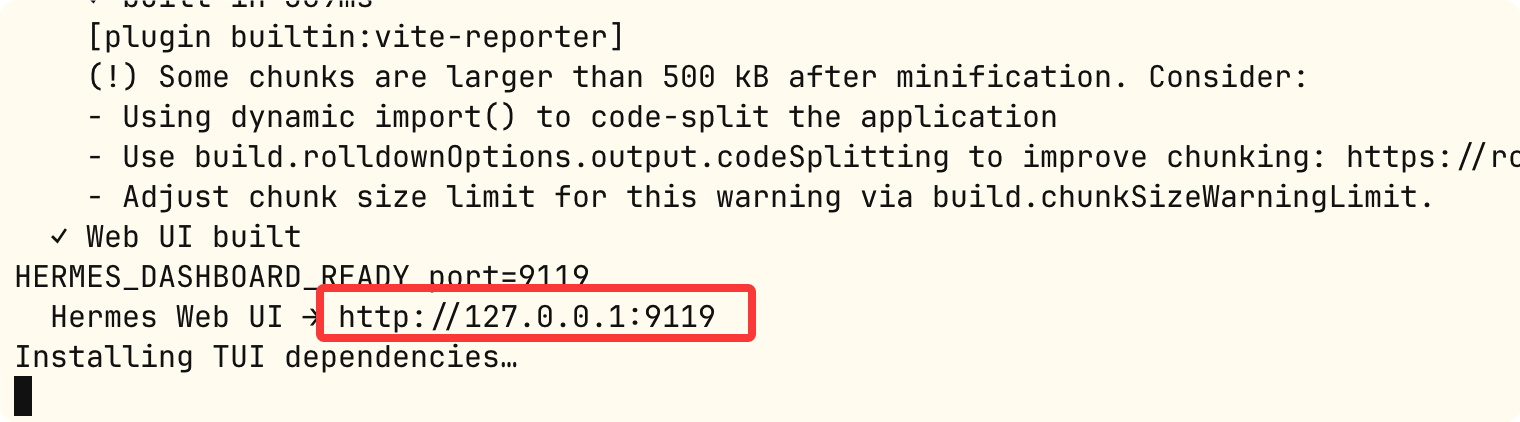
The startup interface is as follows:

View skills:

Related commands:
# 启动 Dashboard(默认 Profile)
hermes dashboard

# 启动并预选指定 Profile
coder dashboard

# 指定端口
hermes dashboard --port 8080
Dashboard Feature Overview
| Functional module | Description |
|---|---|
| Profile switcher | Switch between different Profiles from the sidebar, no restart required |
| Models | Visually configure the primary model and auxiliary models, and view token usage and cost statistics for each model |
| Skills | Browse, install, and manage skills; use the "Learn a skill" panel to generate skills from documents |
| MCP | Browse the MCP catalog, view detailed information about installed servers, and install with one click |
| Chat | Chat directly with the current Profile's Agent in the browser |
| Cron | View and manage scheduled tasks |