Go language development tools
VSCode
For VS Code installation tutorial, see:https://www.example.com/w3cnote/vscode-tutorial.html
Then we open the VSCode extensions (Ctrl+Shift+P):
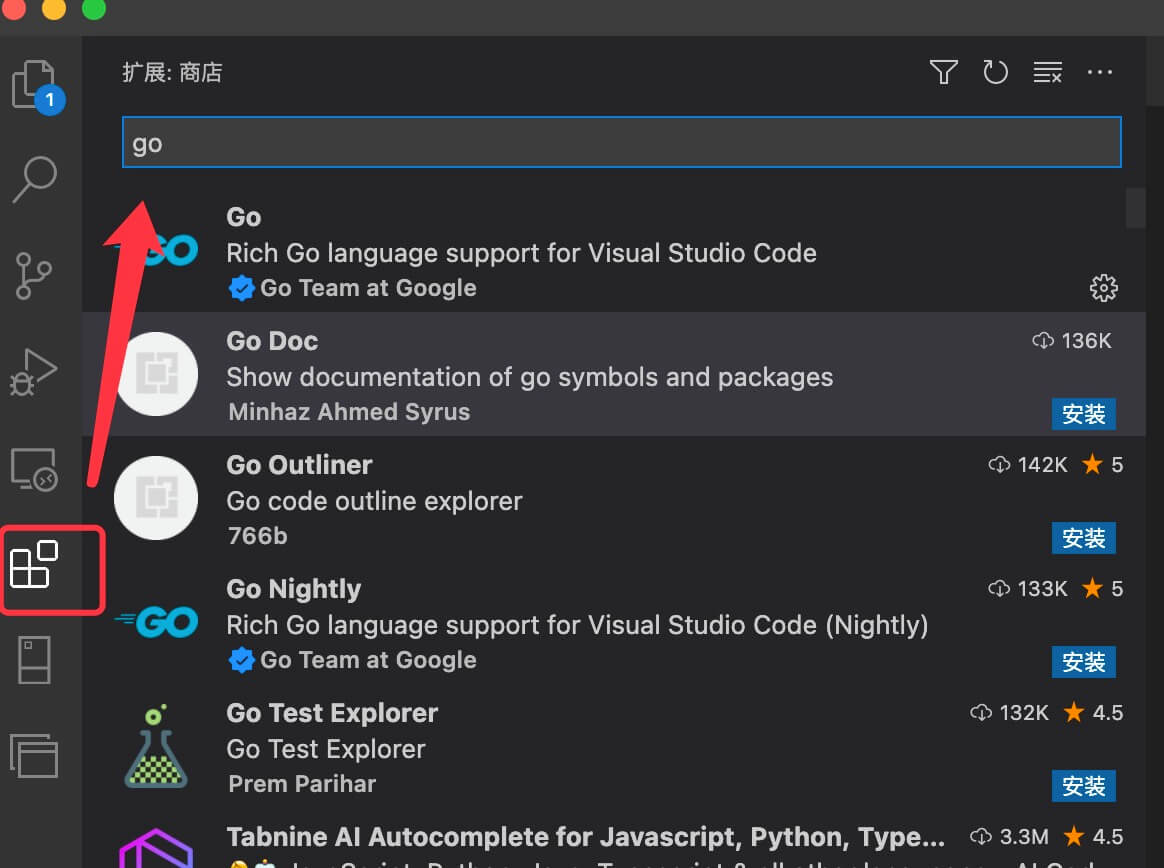
Searchgo:

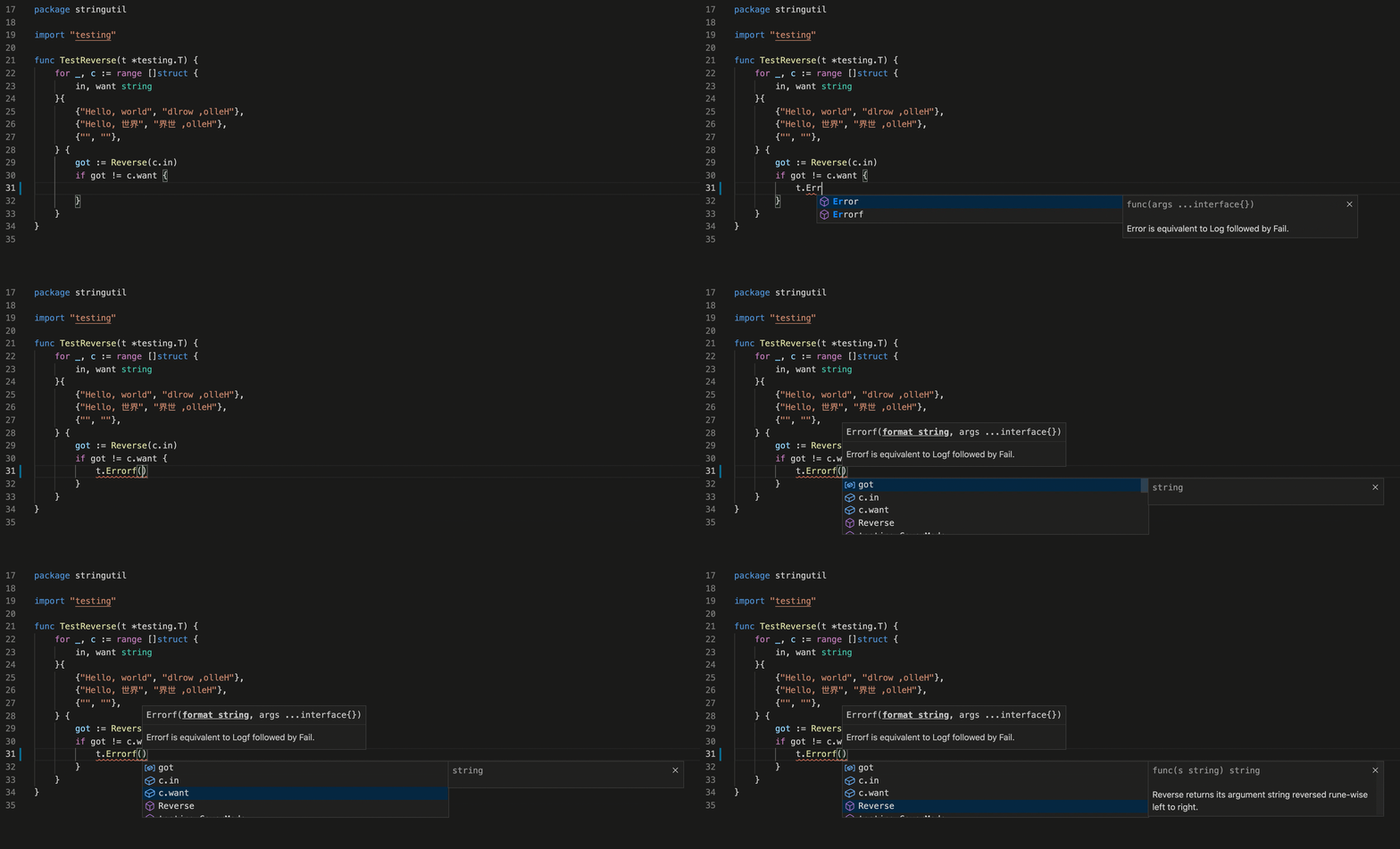
Click install, and once installed, we can use features such as code hints, testing, and debugging.
GoLand
GoLand is the Go language IDE from the JetBrains family, with a 30-day free trial period.
Installation is also simple, visitGoland's download pageand download the corresponding software for the three major platforms (Mac, Linux, Windows) based on your current system environment.

LiteIDE
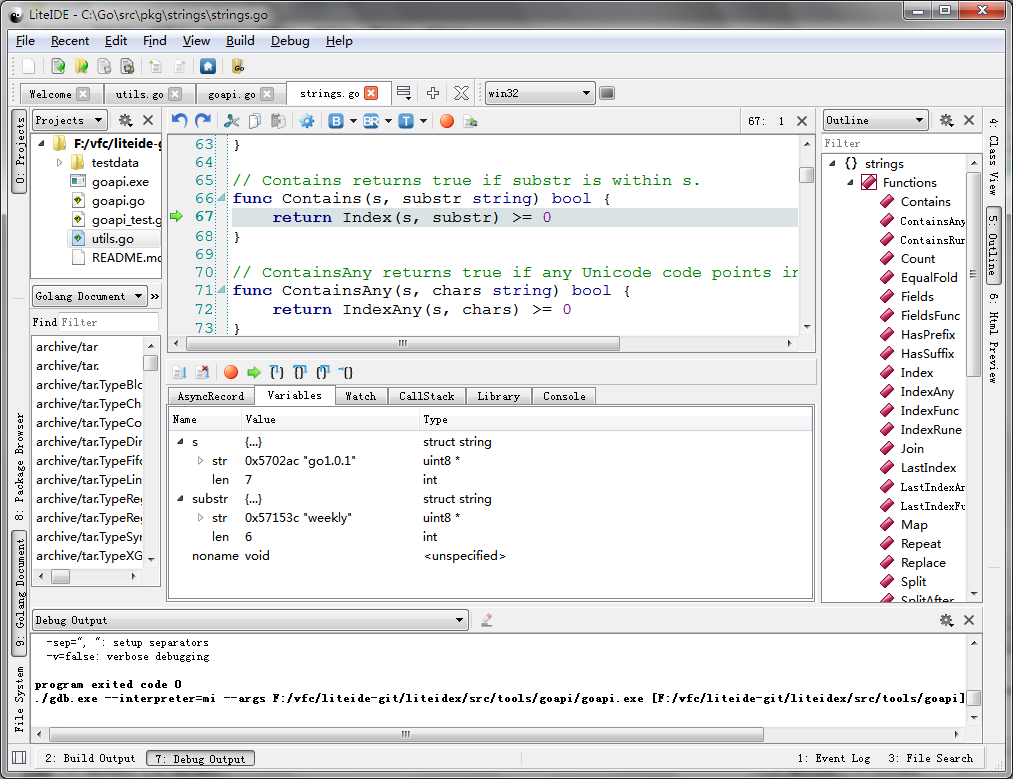
LiteIDE is an open-source, cross-platform lightweight integrated development environment (IDE) for the Go language.
Supported operating systems
- Windows x86 (32-bit or 64-bit)
- Linux x86 (32-bit or 64-bit)
Download address:http://sourceforge.net/projects/liteide/files/
Source code address:https://github.com/visualfc/liteide
Eclipse
Eclipse is also a very commonly used development tool. The following describes how to use Eclipse to write Go programs.
The main interface of Eclipse for editing Go
- First download and installEclipse
- DownloadgoclipsePluginhttps://github.com/GoClipse/goclipse/blob/latest/documentation/Installation.md#installation
Download gocode for Go code completion hints.
gocode's GitHub address:
https://github.com/nsf/gocode
On Windows, you need to install Git, usually usingmsysgit。
Then install under cmd:
go get -u github.com/nsf/gocode
You can also download the code and directly use go build to compile it, which will generate gocode.exe.
- DownloadMinGWAnd install it as required
- Configure plugin
Windows->Reference->Go
(1) Configure Go's compiler
Set some basic information about Go
(2) Configure Gocode (optional, code completion), and set the Gocode path to the previously generated gocode.exe file.
Set gocode information
(3) Configure GDB (optional, for debugging), set the GDB path to the gdb.exe file in the MingW installation directory
Set GDB information
Test whether it was successful
Create a new Go project, and then create a hello.go file. As shown below:
Create a new project and edit files
Debug as follows (you need to enter commands in the console to debug):
Figure 1.16 Debugging a Go program