Windows Docker Installation
Docker is not a universal container tool; it depends on an existing and running Linux kernel environment.
Docker essentially creates an isolated file environment under an already running Linux, so its execution efficiency is almost equivalent to that of the deployed Linux host.
Therefore, Docker must be deployed on a system with a Linux kernel. If other systems want to deploy Docker, they must install a virtual Linux environment.
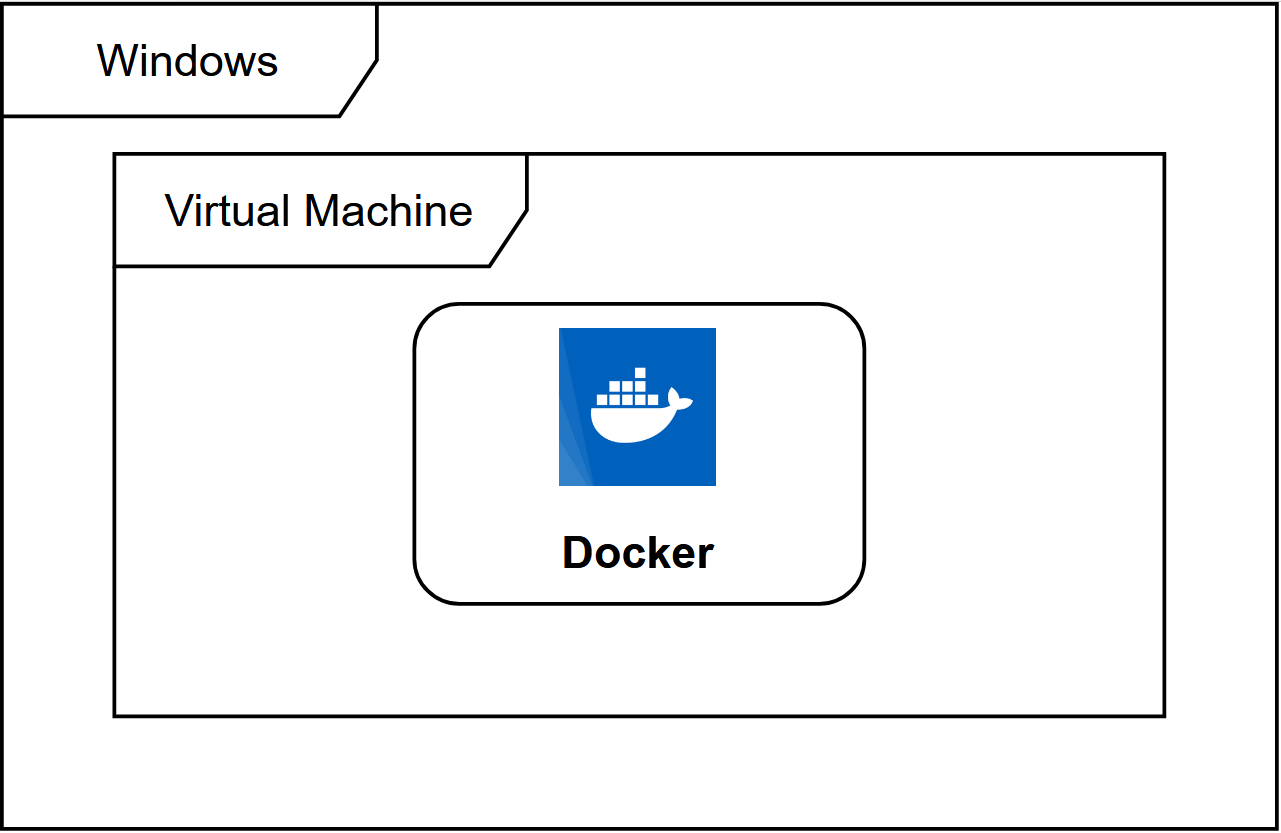
The way to deploy Docker on Windows is to first install a virtual machine and run Docker in the virtual machine with the Linux system installed.
Windows 10 system
Docker Desktop is Docker's official installation method on Windows 10 and macOS operating systems. This method still involves installing Linux in a virtual machine first and then installing Docker.
Docker Desktop official download address:https://docs.docker.com/desktop/install/windows-install/
Note:This method is only applicable to Windows 10 Pro, Enterprise, Education, and some Home editions!
Install Hyper-V
Hyper-V is a virtual machine developed by Microsoft, similar to VMWare or VirtualBox, and is only applicable to Windows 10. This is the virtual machine used by Docker Desktop for Windows.
However, once this virtual machine is enabled, QEMU, VirtualBox, or VMWare Workstation 15 and below will not be usable! If you must use other virtual machines on your computer (such as an emulator required for developing Android apps), do not use Hyper-V!
Enable Hyper-V
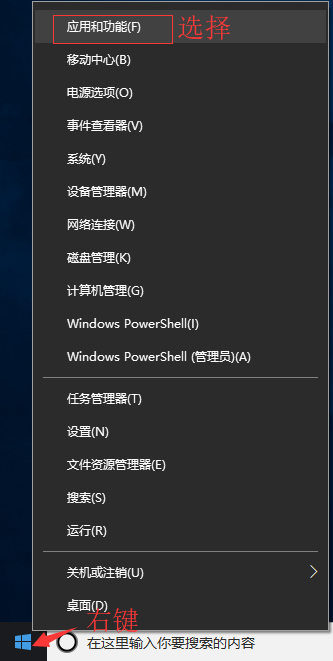
Programs and Features

Enable or disable Windows features

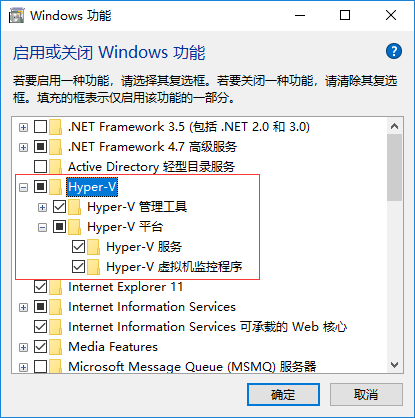
You can also enable Hyper-V via a command. Right-click the Start menu and run PowerShell as administrator, then execute the following command:
Enable-WindowsOptionalFeature -Online -FeatureName Microsoft-Hyper-V -All
Install Docker Desktop for Windows
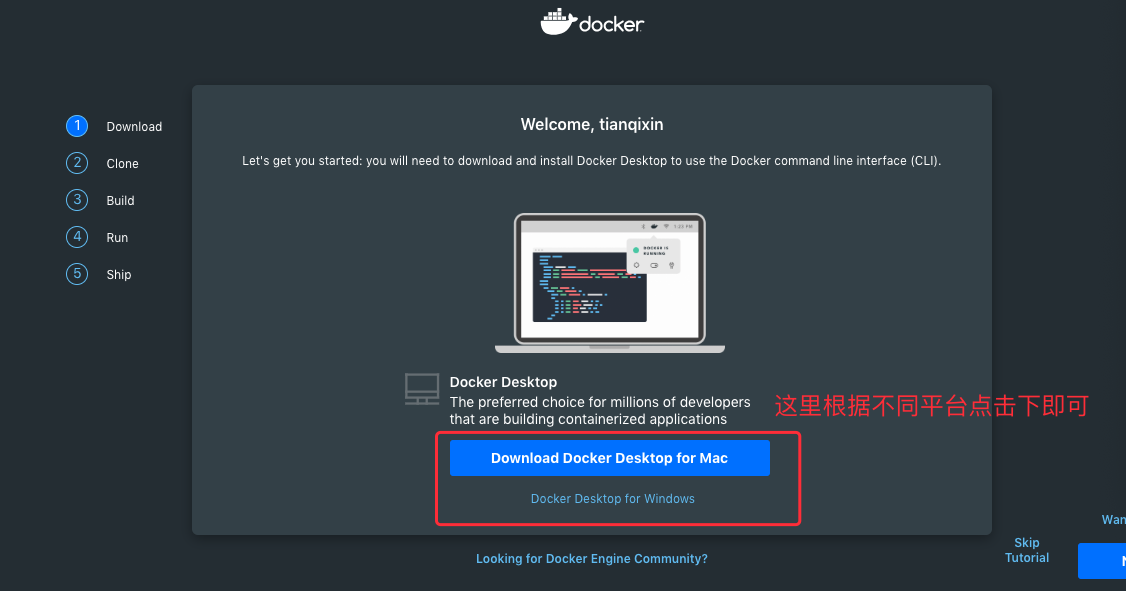
ClickGet started with Docker Desktop, and download the Windows version. If you haven't logged in yet, you will be asked to register and log in:
Run the installation file
Double-click the downloaded Docker for Windows Installer installation file, click Next all the way, and click Finish to complete the installation.
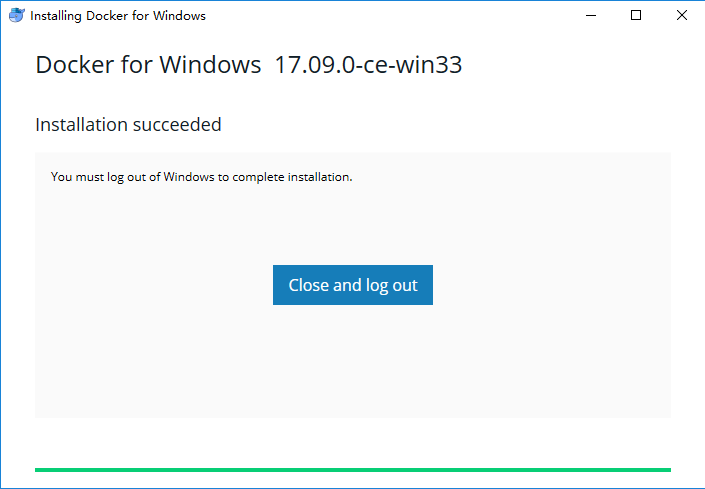
After installation, Docker will start automatically. A small whale icon will appear in the notification bar. , this indicates Docker is running.
Three icons will also appear on the desktop, as shown below:
We can run docker version in the command line to view the version number, and docker run hello-world to load and test the test image.
If it hasn't started, you can search for Docker in Windows to start it:
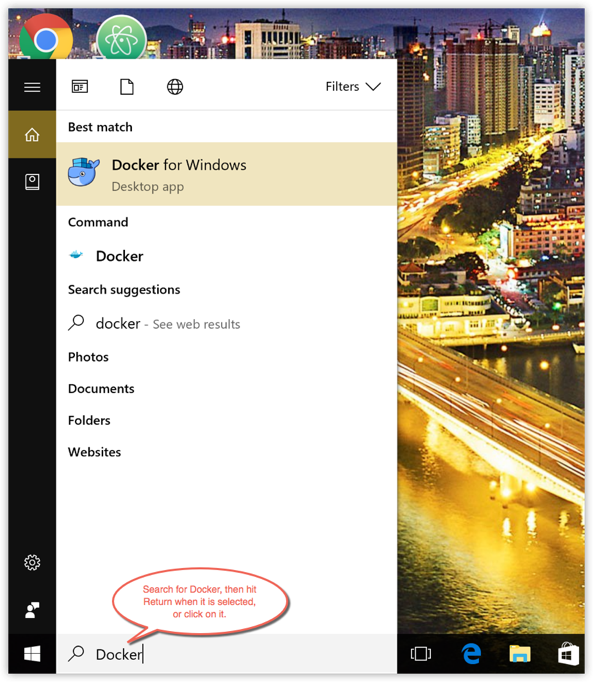
After startup, you can also see the small whale icon in the notification bar:

If an error caused by WSL 2 occurs during startup, please installWSL 2。
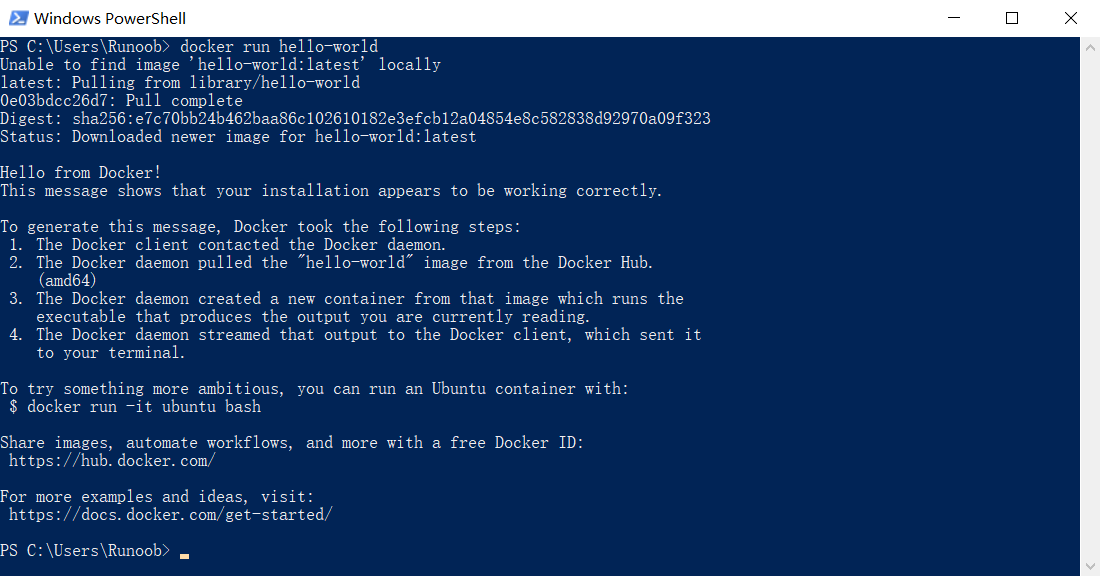
After installation, you can open PowerShell and run the following command to check whether it runs successfully:
docker run hello-world
After successful running, the following information should appear:
Windows 7 and Windows 8 systems
For Win7, Win8, etc., you need to use Docker Toolbox for installation. In China, you can use Alibaba Cloud's mirror to download it. Download address:http://mirrors.aliyun.com/docker-toolbox/windows/docker-toolbox/
Installation is relatively simple: double-click to run, click Next, and you can check the components you need:
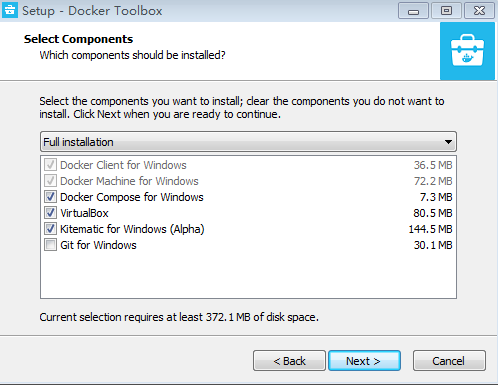
Docker Toolbox is a toolset that mainly includes the following contents:
- Docker CLI - Client, used to run the docker engine to create images and containers.
- Docker Machine - Allows you to run docker engine commands on the Windows command line.
- Docker Compose - used to run the docker-compose command.
- Kitematic - This is the GUI version of Docker.
- Docker QuickStart shell - This is a command-line environment with Docker already configured.
- Oracle VM VirtualBox - Virtual machine.
After downloading, just click to install. After successful installation, three icons will appear on the desktop, as shown below:
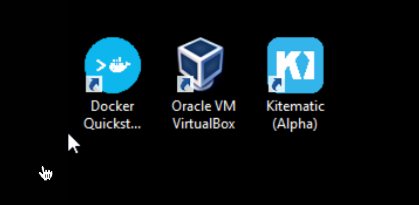
Click the Docker QuickStart icon to launch the Docker Toolbox terminal.
If the system shows a User Account Control window to run VirtualBox to modify your computer, choose Yes.
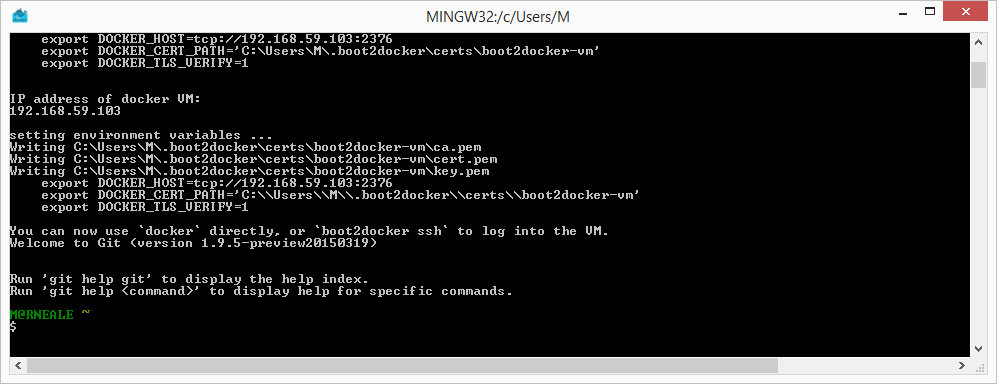
$At the prompt, you can enter the following command to execute.
$ docker run hello-world
 Unable to find image 'hello-world:latest' locally
 Pulling repository hello-world
 91c95931e552: Download complete
 a8219747be10: Download complete
 Status: Downloaded newer image for hello-world:latest
 Hello from Docker.
 This message shows that your installation appears to be working correctly.

 To generate this message, Docker took the following steps:
  1. The Docker Engine CLI client contacted the Docker Engine daemon.
  2. The Docker Engine daemon pulled the "hello-world" image from the Docker Hub.
     (Assuming it was not already locally available.)
  3. The Docker Engine daemon created a new container from that image which runs the
     executable that produces the output you are currently reading.
  4. The Docker Engine daemon streamed that output to the Docker Engine CLI client, which sent it
     to your terminal.

 To try something more ambitious, you can run an Ubuntu container with:
  $ docker run -it ubuntu bash

 For more examples and ideas, visit:
  https://docs.docker.com/userguide/
other extensions