DeepSeek Harness First Use
In the previous section, we introduced DeepSeek Harness installation, with the one-click installation command:
npm install -g @deepseek-ai/dsh # 后期方便使用 dsh 命令
Or:
npx @deepseek-ai/dsh web

Note: Make sure Node.js is installed before installation:
node -v
If the output version number is similar to v22.23.1, the installation was successful ~
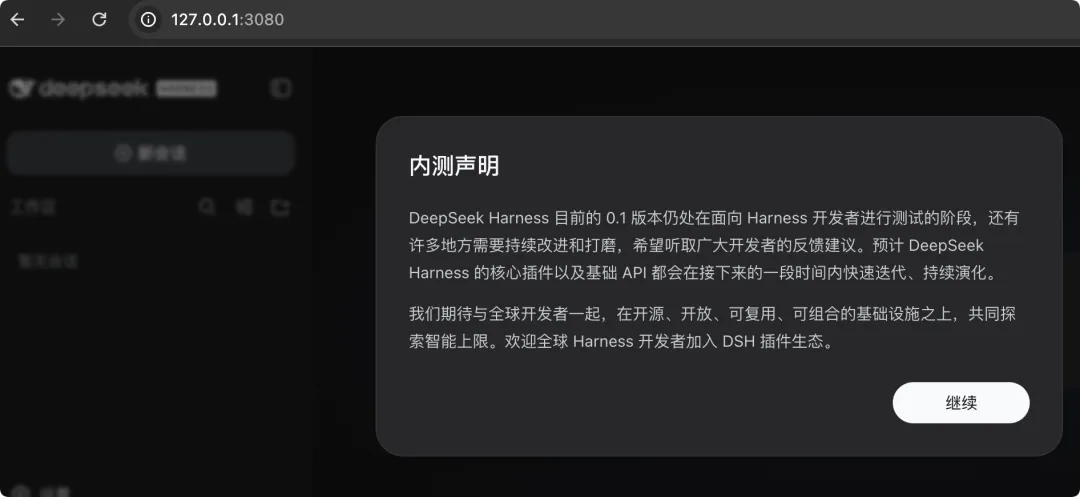
It is currently in closed beta. Opening http://127.0.0.1:3080/ will show the beta notice, just click continue:
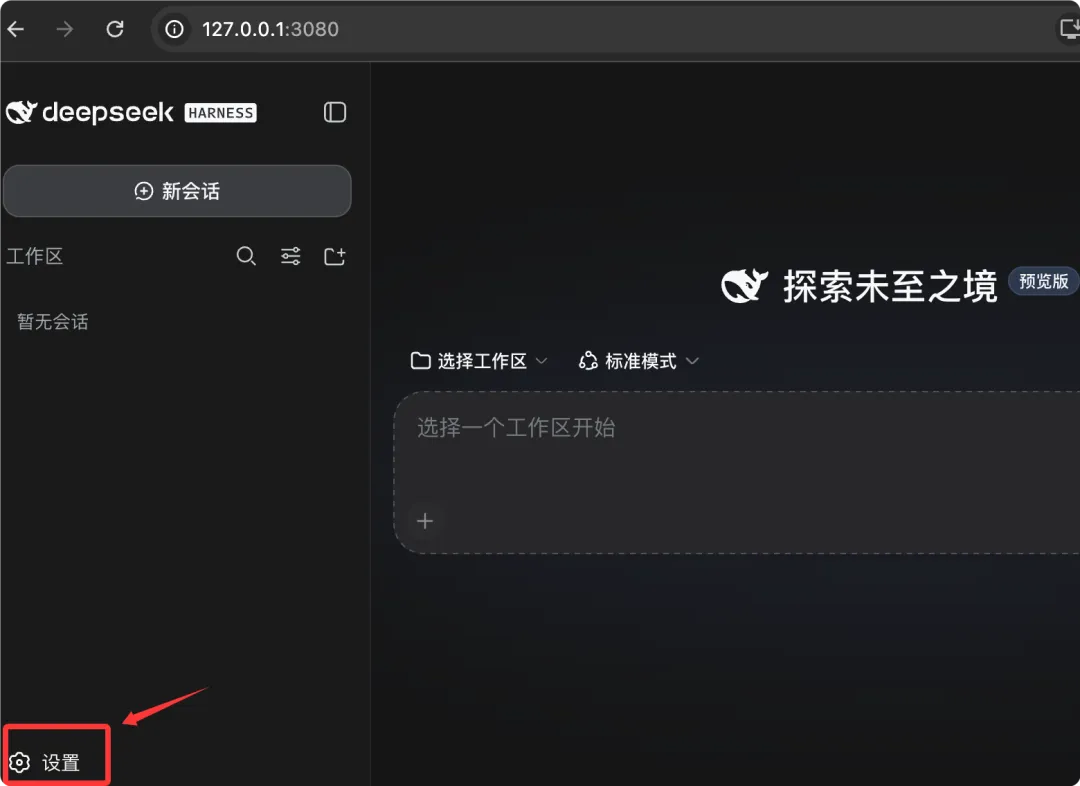
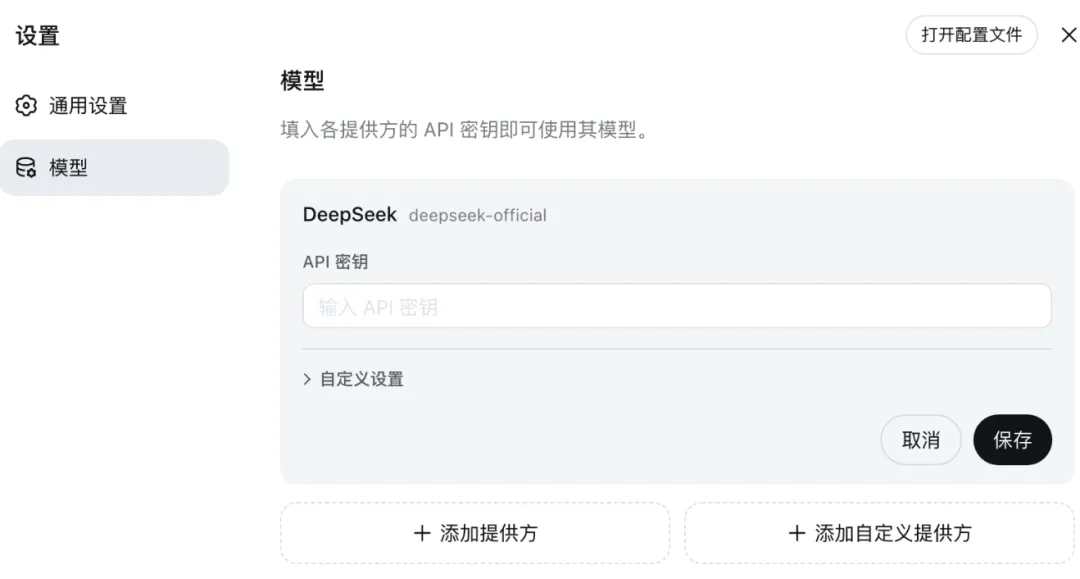
The full interface is as follows. We can first click Settings to configure the API key (application address:https://platform.deepseek.com/api_keys):
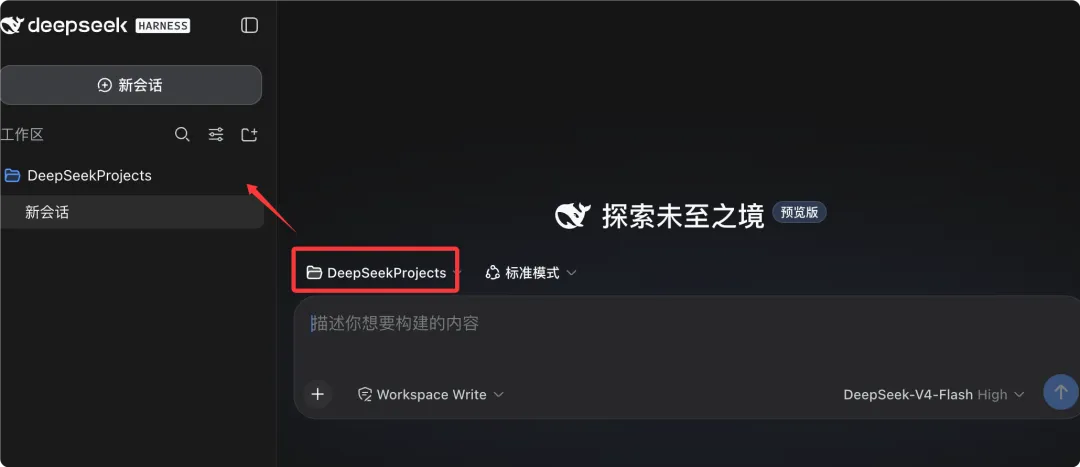
Create a directory DeepSeekProjects as the workspace:
mkdir DeepSeekProjects
DeepSeek Harness provides four operating modes: Standard Mode, PTC Mode, Minimalist Mode, and Creative Mode.
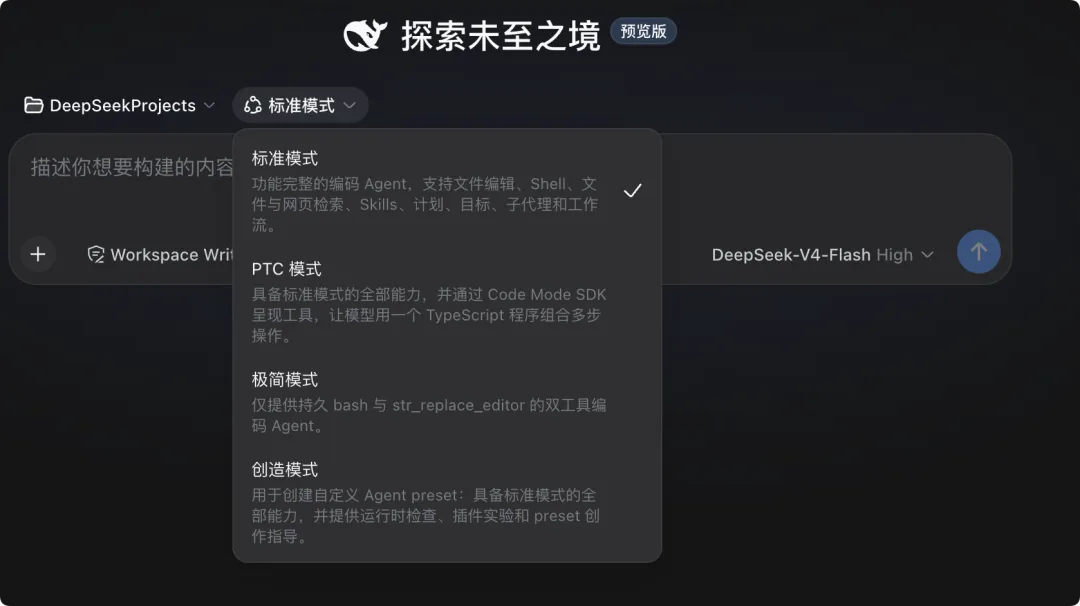
- Standard Mode: Best choice for beginners. Comes with complete built-in code Agent capabilities, with plugins such as file operations, Shell, search, task planning, and sub-agents pre-installed, ready to use out of the box.
- PTC Mode: Capabilities are the same as Standard Mode. Supports batch orchestration of tool calls with TypeScript, merging multiple rounds of interaction, reducing the number of conversations and saving tokens. Relies on strong code planning ability, making debugging more difficult; it is recommended to switch only in scenarios with a large number of repeated calls.
- Minimalist Mode: Only retains persistent Bash and file editor, removing additional features. Used for model benchmark performance testing, not suitable for daily development.
- Creative Mode: Has all the capabilities of Standard Mode; can inspect the Cordis runtime environment, debug plugins online, create new Agents, and achieve autonomous feature expansion.
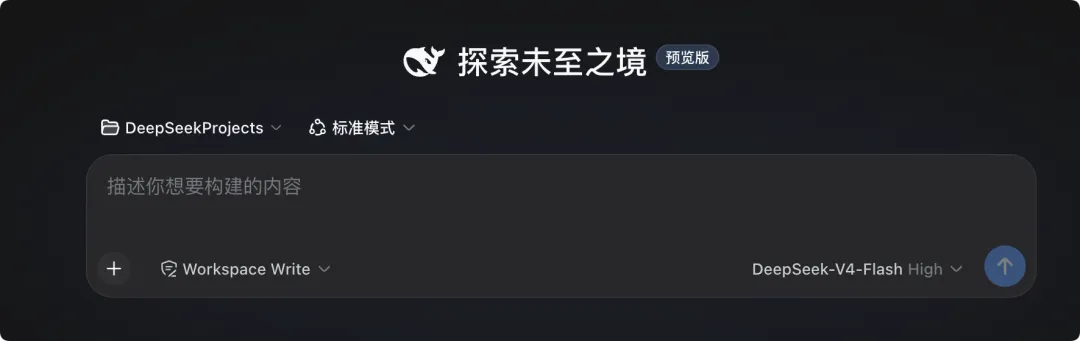
After selecting a mode, click New Session and enter your requirements to start a conversation:
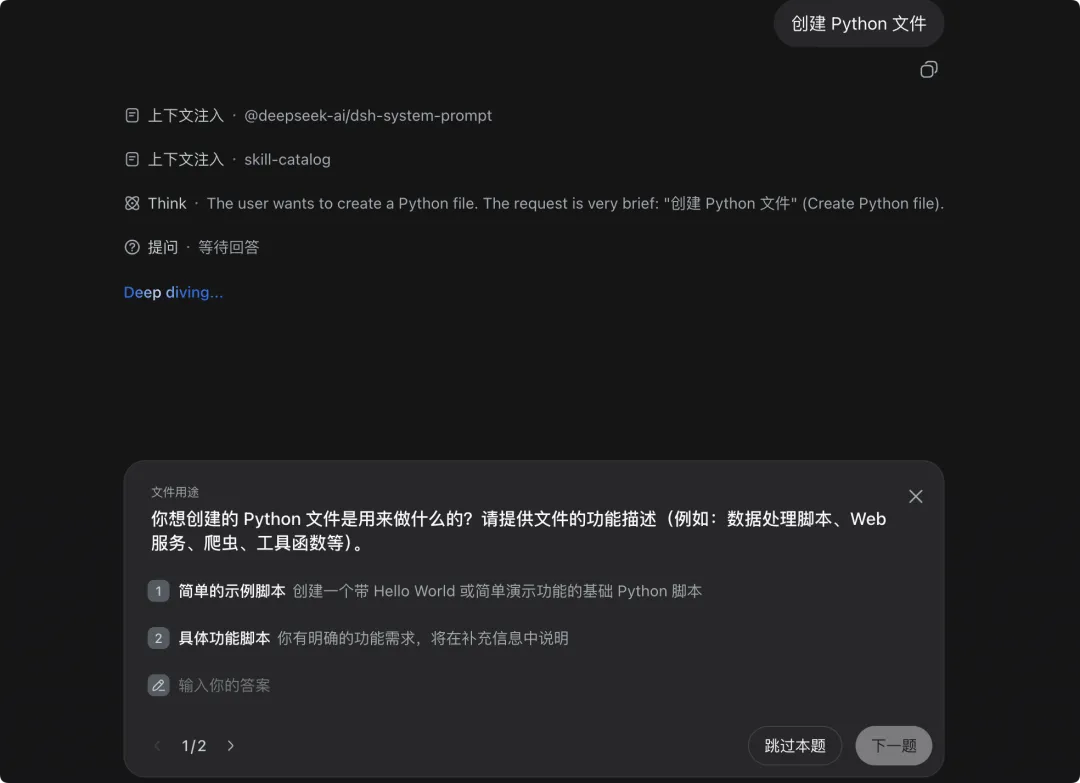
During use, it will also help us analyze requirements:
DeepSeek Harness permissions are used to control the scope of the Agent's access to local files and command execution. Security levels from high to low:Read Only > Workspace Write > Full access。
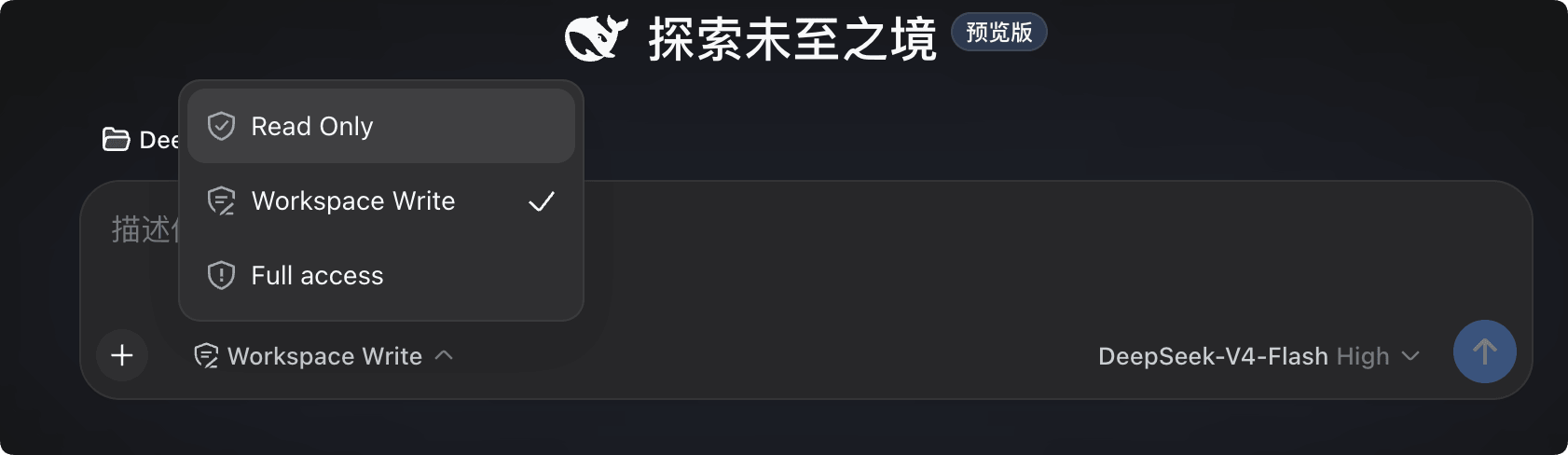
- Read Only:Can only read workspace files, cannot modify files or execute terminal commands, highest security.
- Workspace Write:Allows reading and writing files within the current working directory, can execute commands in the working directory, cannot access files outside the working directory; recommended for daily development.
- Full access:Has full file system access permissions, can read and write files at any path, and execute various terminal commands, posing a higher security risk.
The plugin ecosystem can be viewed on the Settings page:
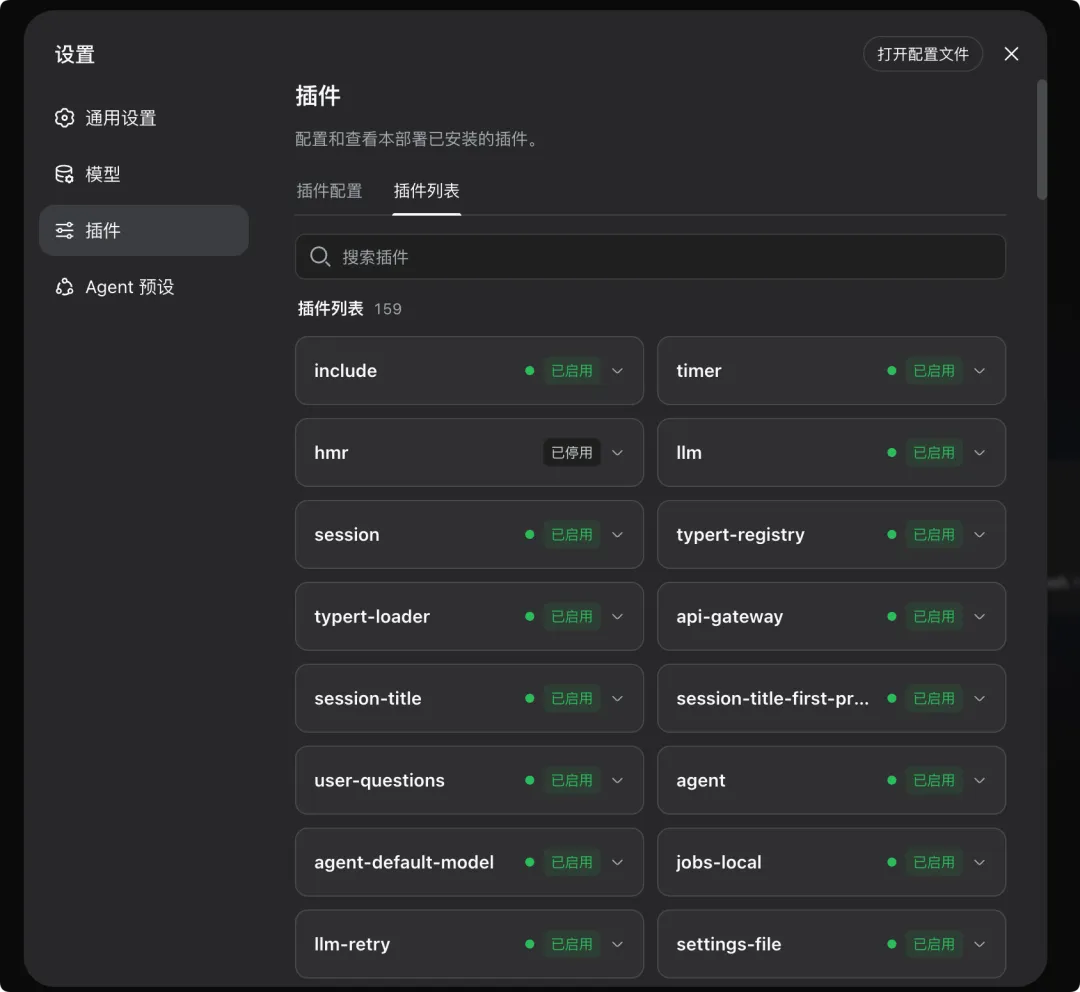
Next, many community plugins will likely be developed; stay tuned.https://github.com/topics/dsh-plugin。
Complete execution process:
