C VScode
In the previous chapter, we introduced the basic concepts and examples of C. In this chapter, we will introduce the editor for C code -- VScode.
VSCode (full name: Visual Studio Code) is a free source code editor developed by Microsoft that is cross-platform. The VSCode development environment is very simple and easy to use.
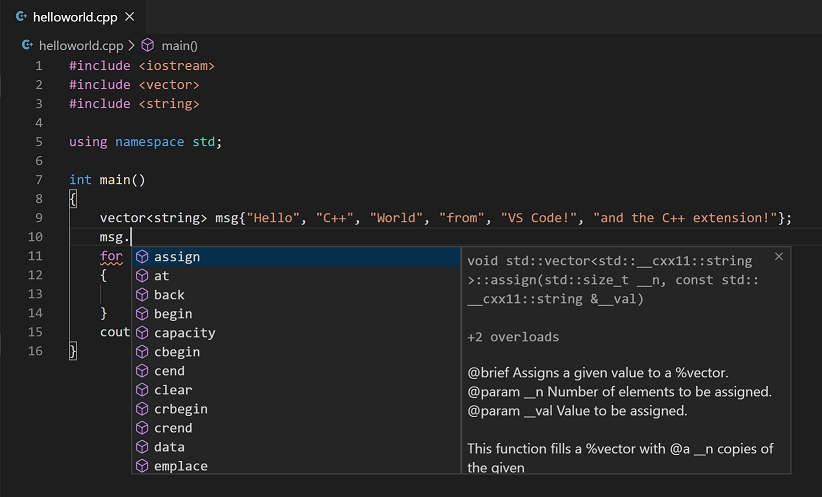
VSCode's support for C/C++ is provided by an extension for Visual Studio Code offered by Microsoft, which enables cross-platform C and C++ development on Windows, Linux, and macOS.
When you create a*.cor*.cppFor files, this extension adds features such as syntax highlighting (coloring), intelligent completion and hover, and error checking.
Install VS Code
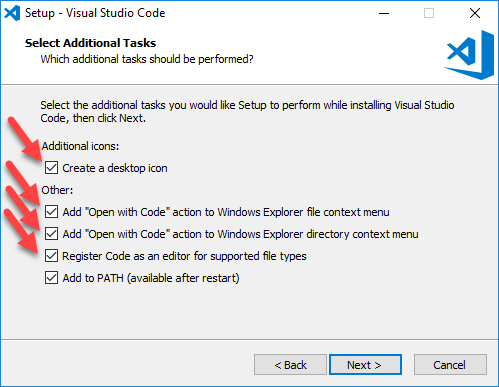
VSCode installation is also simple. Open the official websitehttps://code.visualstudio.com/, download the software package, and install it step by step. During installation, pay attention to the installation path settings; environment variables are added to the system by default automatically. Check all the following options:
Refer to the complete VSCode installation tutorial:https://www.example.com/vscode/vscode-tutorial.html
Install the C/C++ extension
- 1. Open VS Code.
- Click the extensions icon in the left menu bar or use the keyboard shortcut (⇧⌘X) Open the extensions interface.
- Search
C++。 - Select the following extension and clickInstall。
Create a C code file
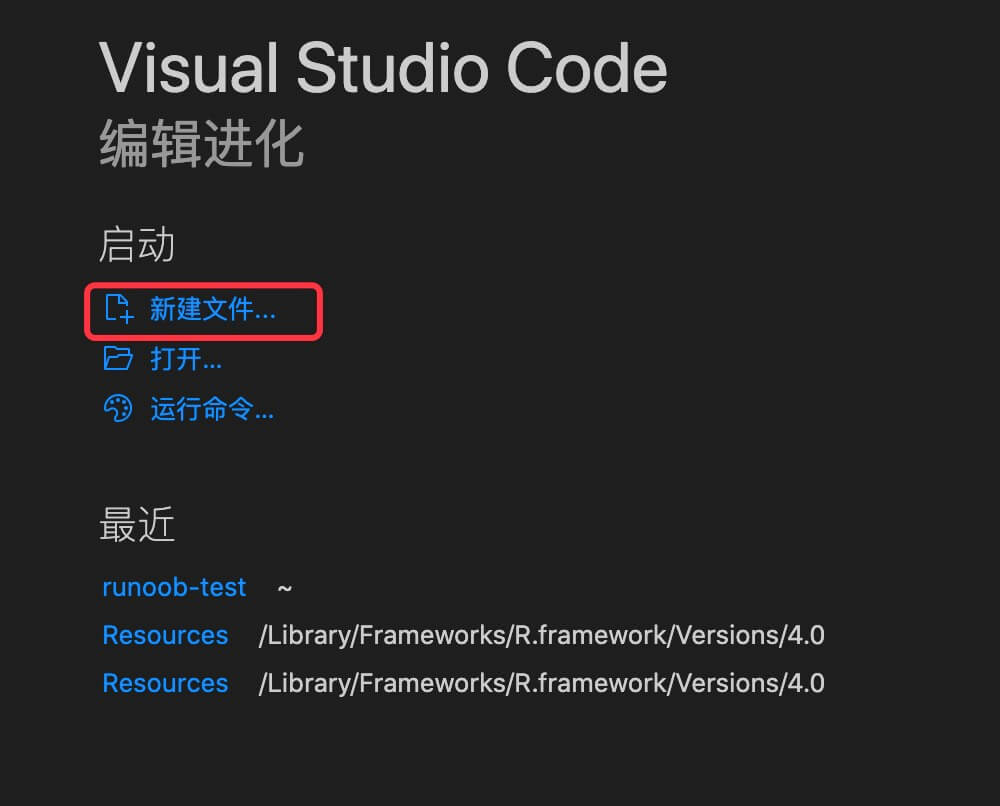
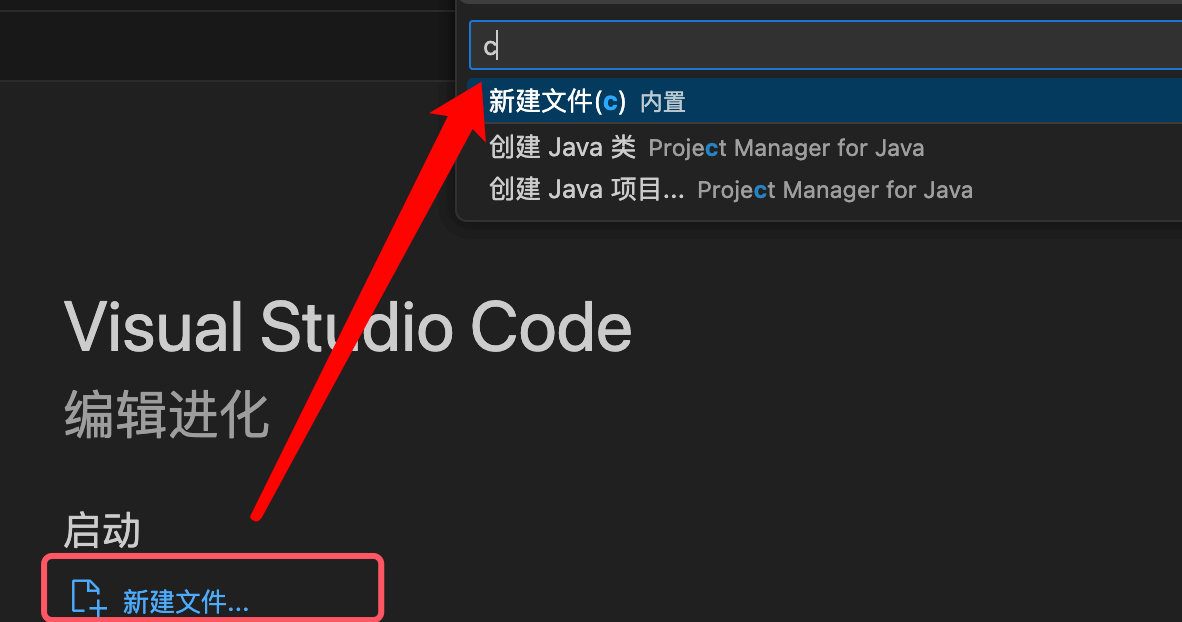
Open VSCode, then click New File:
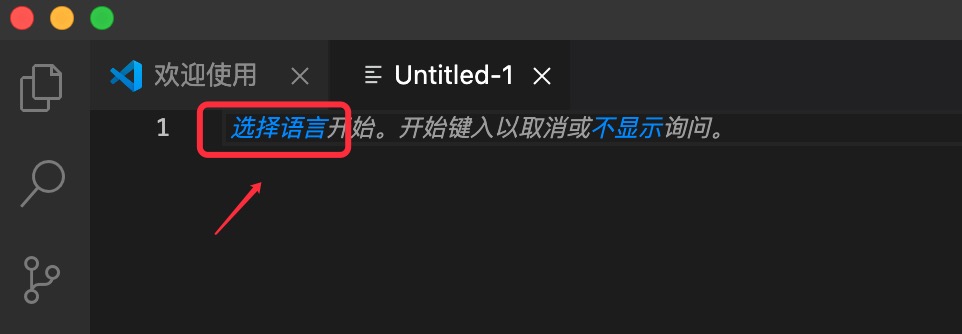
Click to select language:
Enter in the search boxc, createtest.cFile:
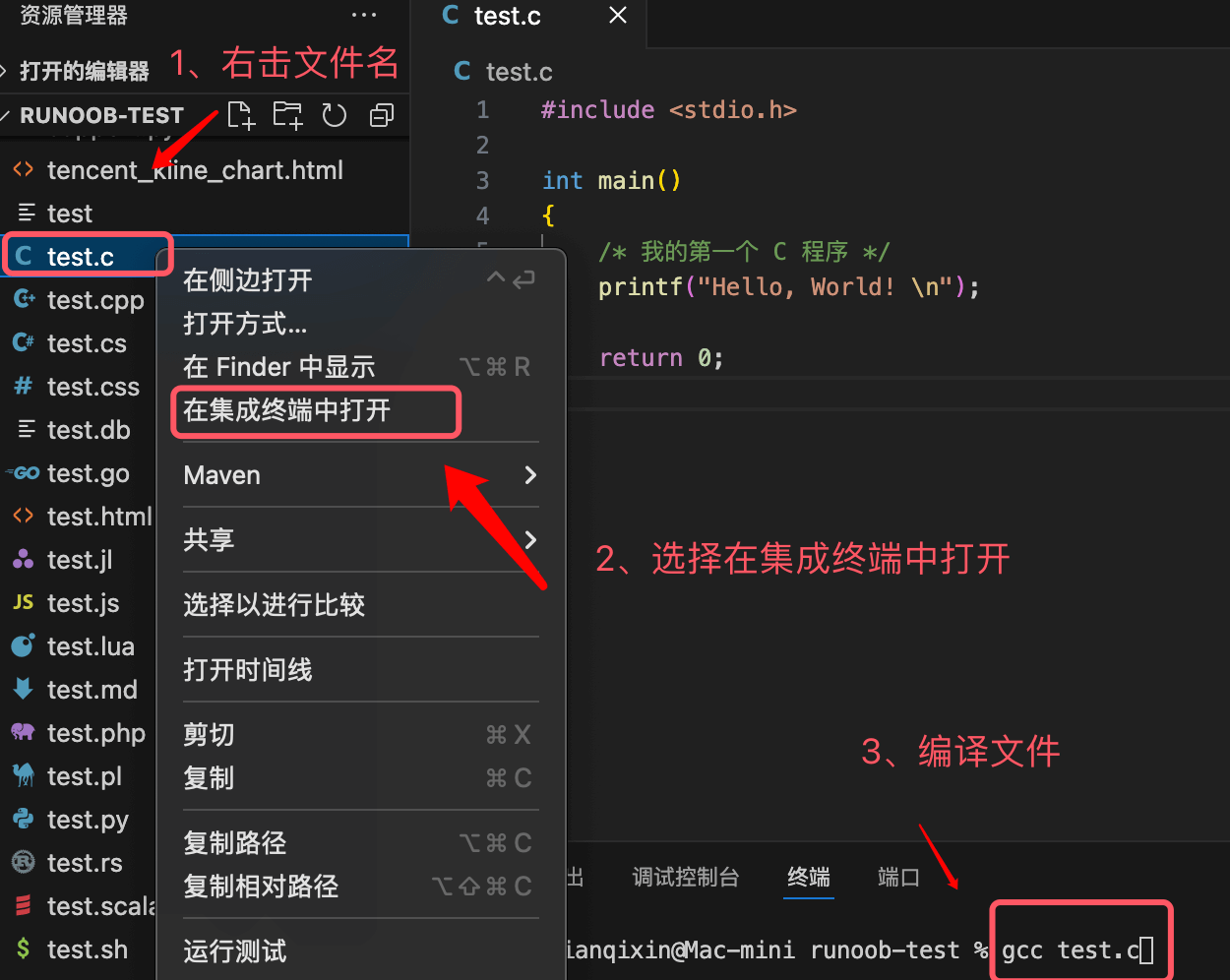
Enter the code, save the test.c file code. Right-click the file name, and execute the following command in the integrated terminal:
Example
int main()
{
/* My first C program */
printf("Hello, World! \n");
return 0;
}